How to use the Amazon Flex app is a question Amazon answers inside the app itself, so this article does not describe screens or menu names that no official source confirms. It covers what Amazon’s official Google Play listing says, and gives you a checklist of what to look for in the app.
That is the limit of what the official listing supports. Requirements and pay each have their own guides, so this one stays on the app.
What does the Amazon Flex app do?
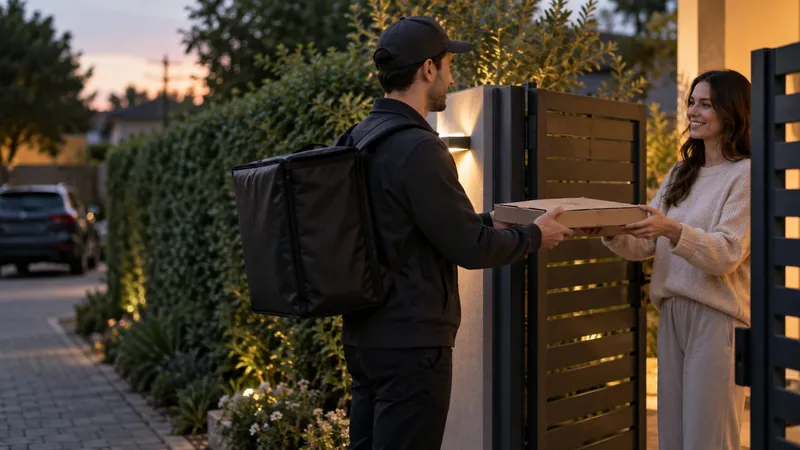
Amazon’s Google Play listing, which showed an update dated October 8, 2026, describes the Flex app as the way to deliver packages with Amazon. It says the app gives you access to technology that makes delivering easy, and that Amazon will guide you every step of the way, from sign-up to making your first delivery to on-road support.[1]
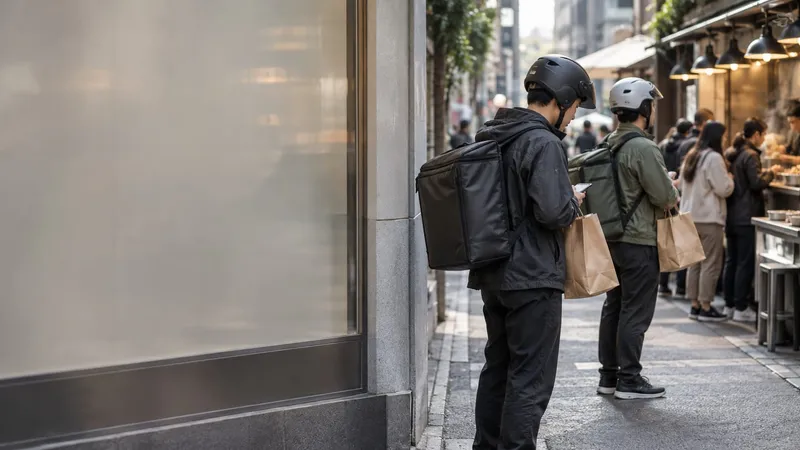
The listing also says you can build your own schedule, seven days a week, and either schedule work ahead or accept same-day offers when you have spare time. Those two options are the core of how the app is used: you take an offer, and you complete it.
The listing adds a note that actual earnings depend on your location, any tips you receive, how long it takes you to complete your deliveries and other factors. So the app gives you the offers, but what a given block is worth to you is something you work out from the offer and your own costs.
Compare car rental
500+ rental companies. Free cancellation on most bookings.
Amazon Flex app on Android
The Android app is published on Google Play by Amazon Mobile LLC and the listing shows more than 5 million downloads. The listing summarizes who can start, including a minimum age, a vehicle type, a valid ID, personal auto insurance and a bank account, but the app and Amazon’s own terms are the final word.
Notifications deserve a look early. The listing says that by downloading the app you agree to receive emails and push notifications from Amazon Flex, and that you manage push notification preferences in your device settings. For a delivery app, notifications are how offers reach you, so turning them off has a cost.
How to use Amazon Flex: the sequence to expect
Using the listing’s own outline, the path is:
- Sign up. Create or sign in to your account in the app and complete the steps it shows.
- Choose work. Schedule ahead or take a same-day offer when one appears.
- Make the delivery. Follow the app’s guidance through pickup and drop-off.
- Use support. The listing promises on-road support, so know where the help option is before you need it.
The listing gives no screen-by-screen tutorial, so look for an in-app walkthrough when you first log in.
Amazon Flex settings and menu: what to check
The listing does not give Amazon’s exact menu labels, so treat this as a checklist of areas to find in the app rather than a description of them:
- Account and profile details, including how to log out or sign out.
- Notification preferences, in the app and in your phone settings.
- Vehicle information. If the app asks you to link or confirm a connected vehicle, follow its prompts and contact Amazon support with any question.
- Payment and bank details.
- Help and support, including contact options during a delivery.
Where do you pick up packages for Amazon Flex?
The pickup point depends on the offer you accept, and the location is shown in the app with the offer. The listing does not describe pickup types, so this guide does not list pickup locations or procedures. Read each offer carefully, and follow the instructions the app gives at the pickup. Amazon also runs a freight platform for trucking companies; see Amazon Relay requirements for carriers.
What does the Amazon Flex app collect?
The listing’s data safety section says the app may collect location, personal info and several other data types, and may share personal info and audio with third parties. It says data is encrypted in transit and that you can request that your data be deleted. The developer provides this information and can update it, so read the current section before you install.
What about records and taxes?
Whatever the app shows about your deliveries, keep your own records. The IRS runs a Gig Economy Tax Center that points gig workers to forms, record keeping and expense deductions.[2] Taxes are a separate question that depends on how Amazon classes your work, and the app does not settle it for you.
Before your first delivery
Update the app, allow the permissions it requests only after reading what each is for, and check your notification settings. Then use the in-app help rather than a third-party tutorial for anything the screens do not make clear. Tutorials on other sites can go out of date when the app changes, and the app is the one source that is always current. If you have not signed up yet, check Amazon Flex requirements and how to apply first.